Why Automate WordPress Publishing?
Write in Markdown,
git push, and your WordPress blog updates automatically. No plugins, no admin panel — just code. This post was updated via PUT to verify the pipeline.
Why Automate WordPress Publishing?
Logging into the WordPress admin every time you want to post is friction. When publishing feels like work, you write less. This setup removes that friction: write a .md file, push it, and GitHub Actions handles the rest — including image uploads, category tagging, and Telegram notifications.
How the Pipeline Works
Markdown file (git push)
  → GitHub Actions detects changed .md files
    → Python script converts Markdown → HTML
      → Images uploaded to WP Media Library
        → POST /wp-json/wp/v2/posts (new) or PUT (update)
          → wp_id written back to frontmatter
            → Telegram notification sent
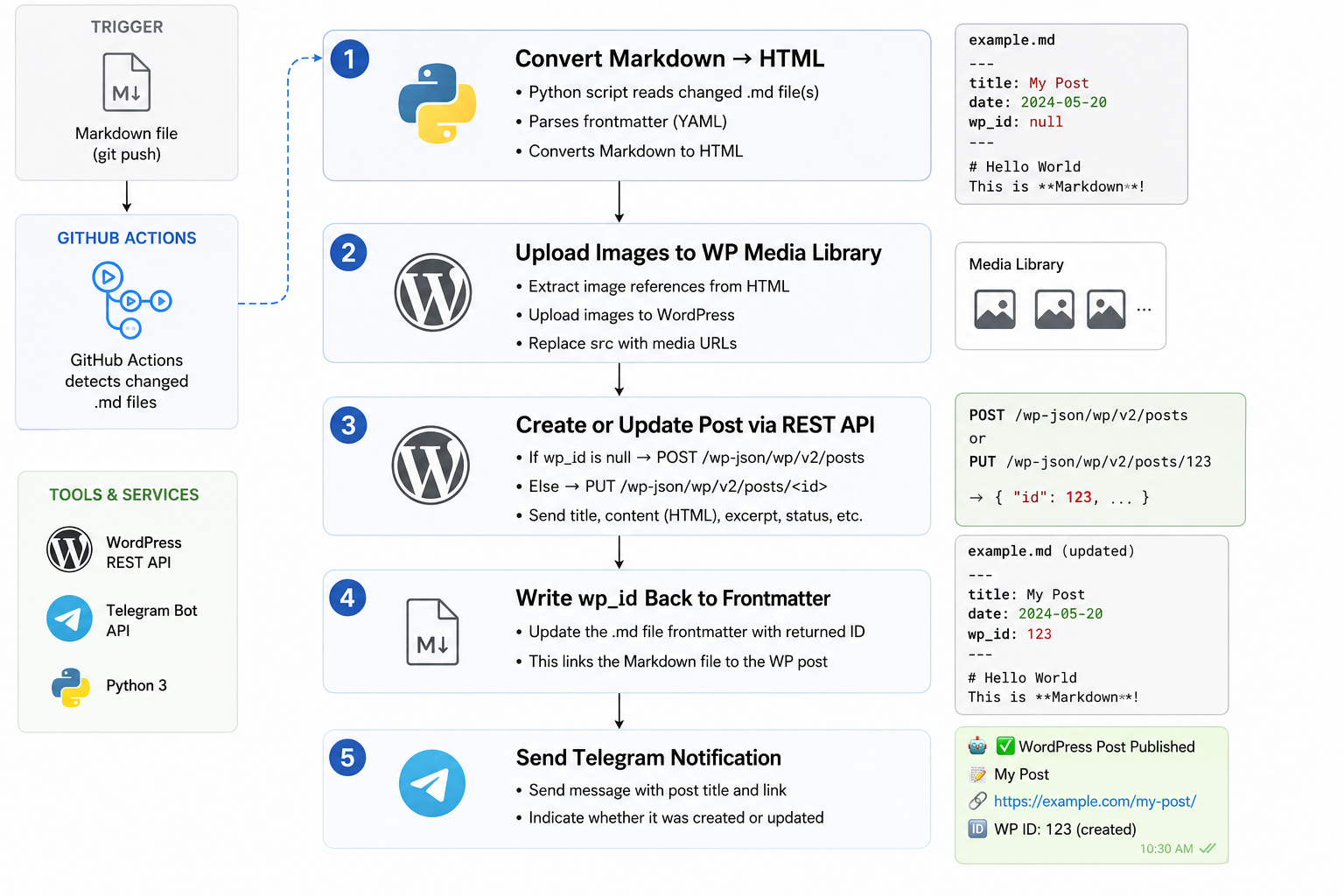
The script reads two frontmatter fields:
---
is_public: true   # true = publish, false = draft
wp_id:            # auto-filled after first deploy
---
After the first publish, GitHub Actions commits wp_id back to your file. Future pushes to that file become updates (PUT), not duplicate posts.
Step 1 — WordPress Application Password
In your WordPress admin: Users → Profile → Application Passwords
Generate one and save it. This replaces your login password for API calls.
# Test it works
curl -s "https://yoursite.com/wp-json/wp/v2/users/me" \
  -u "username:xxxx xxxx xxxx xxxx xxxx xxxx"
Step 2 — GitHub Secrets
In your repo: Settings → Secrets → Actions → New repository secret
| Secret | Value |
|---|---|
WP_SITE_URL |
https://yoursite.com |
WP_USERNAME |
your WP username |
WP_APP_PASSWORD |
the password from Step 1 |
TELEGRAM_TOKEN |
your bot token |
TELEGRAM_CHAT_ID |
your chat ID |
Step 3 — The Workflow File
.github/workflows/deploy.yml:
name: Deploy to WordPress
on:
  push:
    branches: [main]

jobs:
  deploy:
    runs-on: ubuntu-latest
    permissions:
      contents: write

    steps:
      - uses: actions/checkout@v4
        with:
          fetch-depth: 2

      - uses: actions/setup-python@v5
        with:
          python-version: '3.12'

      - run: pip install -r scripts/requirements.txt

      - id: changed
        run: |
          FILES=$(git diff --name-only HEAD~1 HEAD -- '*.md' | tr '\n' ' ')
          echo "files=$FILES" >> $GITHUB_OUTPUT

      - if: steps.changed.outputs.files != ''
        env:
          WP_SITE_URL:     ${{ secrets.WP_SITE_URL }}
          WP_USERNAME:     ${{ secrets.WP_USERNAME }}
          WP_APP_PASSWORD: ${{ secrets.WP_APP_PASSWORD }}
        run: python scripts/deploy.py ${{ steps.changed.outputs.files }}

      - if: steps.changed.outputs.files != ''
        run: |
          git config user.name "github-actions[bot]"
          git config user.email "github-actions[bot]@users.noreply.github.com"
          git diff --quiet || (git add -A && git commit -m "chore: update wp_id [skip ci]" && git push)
Step 4 — The Deploy Script
scripts/deploy.py does three things:
- Parses frontmatter — reads
is_publicandwp_id - Converts Markdown → HTML — with table, code, and TOC support
- Uploads images — scans
assets/folder, uploads to WP Media Library
Key function:
def deploy_post(md_file):
    text = md_file.read_text(encoding="utf-8")
    meta, body = parse_frontmatter(text)
    category_id = get_or_create_category(md_file.parent.name)
    html = markdown.markdown(body, extensions=["tables", "fenced_code"])
    status = "publish" if meta.get("is_public", True) else "draft"

    if meta.get("wp_id"):
        requests.put(f"{API}/posts/{meta['wp_id']}", json=payload, auth=AUTH)
    else:
        r = requests.post(f"{API}/posts", json=payload, auth=AUTH)
        meta["wp_id"] = r.json()["id"]
        write_frontmatter(md_file, meta, body)
Folder Structure
wordpress-blog/
├── Automation/           → WP category "Automation"
├── Build & Projects/     → WP category "Build & Projects"
├── Make Money/
├── Problem Solving/
├── Prompts/
├── Tools & Reviews/
├── Books/
└── scripts/
    ├── deploy.py
    └── requirements.txt
Each folder maps to a WordPress category. The folder name becomes the category name — no config needed.
Publishing a Post
# New post
echo "---\nis_public: true\nwp_id:\n---\n\n## My Post\n\nContent here." \
  > Automation/my-post.md
git add . && git commit -m "feat: add my post" && git push
GitHub Actions runs, creates the WP post, writes wp_id back. Next time you push that file, it updates the existing post instead of creating a duplicate.
What Actually Broke (and How I Fixed It)
The happy path above is clean. The version I actually shipped took a few afternoons of debugging, and the gotchas are the useful part:
The WAF silently 403’d every image upload. Posts went up fine, but uploads to the Media Library came back 403 Forbidden. The site sits behind a Cafe24 WAF that blocks the default python-requests User-Agent. The fix was to spoof a real browser UA on the upload request:
headers={
    "User-Agent": "Mozilla/5.0 (Windows NT 10.0; Win64; x64) "
                  "AppleWebKit/537.36 (KHTML, like Gecko) Chrome/124.0 Safari/537.36",
    "Accept": "*/*",
    "Accept-Language": "en-US,en;q=0.9",
}
It’s a soft filter — it only blocks the bare python-requests UA, so a browser string sails through. Nothing in the WP docs warns you about this.
Rank Math ignores the standard meta endpoint. Setting focus keywords or SEO titles through /wp/v2/posts meta did nothing — Rank Math doesn’t register its fields with show_in_rest. It has its own endpoint, /rankmath/v1/updateMeta, and it needs a nonce that Application Passwords don’t issue. So the script logs in through wp-login.php to grab a REST nonce first, then pushes SEO fields. Ugly, but it’s the only path that works.
Category names with & broke the lookup. “Build & Projects” couldn’t be found by API search — the & mangled the query string. Instead of fighting URL encoding, I hardcoded a name → category ID map for the known categories and skipped the search.
Deleted posts created duplicates. If I removed a post in WP admin but left its wp_id in frontmatter, the next push 404’d on the PUT and silently created a new duplicate. The script now verifies the wp_id still exists, and if it’s gone, searches by title before deciding to create vs. update.
Result
- Zero WordPress admin logins for publishing
- Git history = content history (diff, revert, branch)
- Telegram confirms every deploy in real time
- Works for any WordPress site with the REST API enabled
Related Guides on Private Labs
- How I Built an AI Automation Workflow That Saves 3 Hours a Day
- Automate Your Daily Workflow with Python Scripts
- How I Automated My Content Workflow with AI Agents
More in Automation.