Cursor AI vs GitHub Copilot: Which AI Coding Assistant Is Actually Worth It?
Cursor AI vs GitHub Copilot: Which AI Coding Assistant Is Actually Worth It?
Cursor AI vs GitHub Copilot: Which AI Coding Assistant Is Actually Worth It?
One-line verdict: Cursor AI wins for developers who want a deeply integrated AI-first coding environment, while GitHub Copilot is the safer, more portable choice for teams already embedded in the GitHub ecosystem — but neither is a clear knockout, and the right pick depends almost entirely on how you actually work.
Overview
I’ve spent the period from January through May 2025 using both tools seriously — not just poking around in demo projects, but shipping real features, debugging gnarly production issues, and doing the kind of repetitive boilerplate work that makes you question your career choices. Here’s what I actually found.
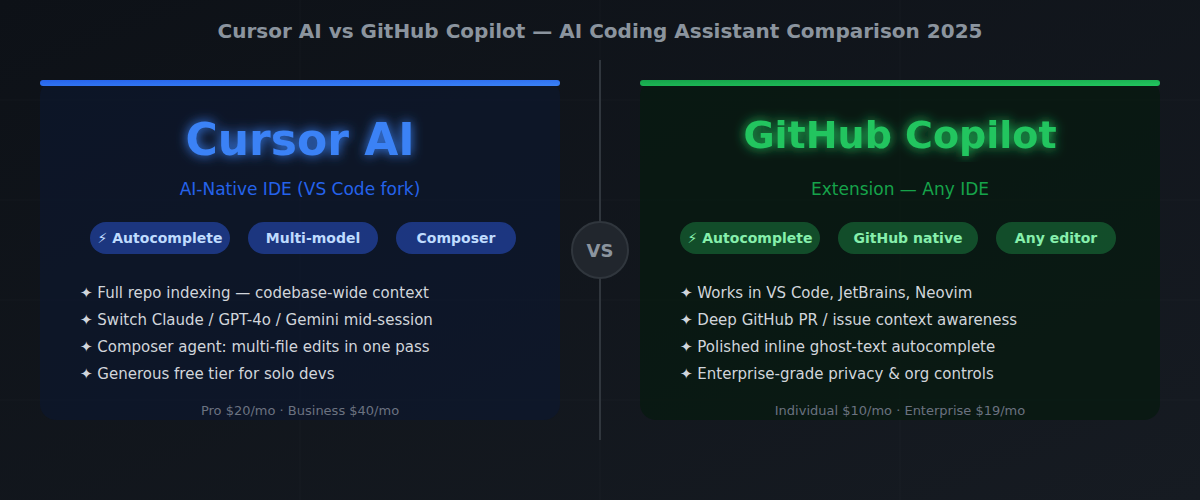
Cursor AI is a full code editor forked from VS Code. You bring your extensions, your keybindings, your muscle memory — but the entire environment is rebuilt around AI interaction. You’re not bolting AI onto an existing workflow. You’re working inside an AI-native shell.
GitHub Copilot is an extension. It plugs into VS Code, JetBrains IDEs, Neovim, and others. It autocompletes code, answers questions in a chat panel, and recently got more agentic features with Copilot Workspace. The integration story is its superpower and, honestly, also its ceiling.
Both tools use large language models under the hood. Both can write functions, explain code, and generate tests. But the philosophy behind how they deliver that capability is completely different — and that difference matters more than any individual feature.
Features Comparison Table
| Feature | Cursor AI | GitHub Copilot |
|---|---|---|
| Base editor | Forked VS Code (standalone) | Extension for VS Code, JetBrains, Neovim, etc. |
| Inline autocomplete | ✅ Yes | ✅ Yes |
| Chat interface | ✅ Built-in, context-aware | ✅ Copilot Chat |
| Codebase-wide context | ✅ Strong (indexes your repo) | ⚠️ Improving, but limited |
| Multi-file editing | ✅ Composer/Agent mode | ⚠️ Copilot Workspace (beta) |
| Model choice | ✅ GPT-4, Claude 3.5, Gemini | ⚠️ Mostly OpenAI models |
| Terminal AI integration | ✅ Yes | ⚠️ Limited |
| Privacy/enterprise controls | ✅ Available | ✅ Strong (GitHub Enterprise) |
| Free tier | ✅ Yes (limited) | ✅ Yes (limited) |
| Pricing (paid) | $20/month (Pro) | $10/month (Individual) |
| Team/org billing | ✅ Business plan available | ✅ Well-established |
| Works in your current IDE | ❌ Requires switching editors | ✅ Yes |
Cursor AI — The Details
Cursor’s big move is context. When you open a project, it indexes your entire codebase and keeps that context available during conversations and edits. When I asked it to “update all API calls to use the new auth token pattern,” it found the 11 affected files across the repo, understood the existing pattern from three different call sites, and made coherent changes across all of them simultaneously. That’s Composer mode, and it’s legitimately impressive when it works.
The model flexibility is also real. You can switch between GPT-4o, Claude 3.5 Sonnet, and others depending on the task. I found Claude 3.5 Sonnet noticeably better for complex refactoring tasks — it made fewer “plausible but wrong” edits than GPT-4o on the same prompts — and being able to choose that inside the editor without context-switching is a genuine quality-of-life improvement.
The catch? You’re committing to a new editor. If you’re a JetBrains user, Cursor isn’t an option yet. If your team has strong preferences or standardized tooling, convincing everyone to switch editors is a non-trivial conversation.
GitHub Copilot — The Details
Copilot’s inline autocomplete is still best-in-class for the specific task of “suggest the next few lines while I’m typing.” The ghost text completions feel more natural and less intrusive than Cursor’s equivalent, and it’s had more time to mature. For developers who just want AI suggestions without changing how they work, Copilot delivers this with minimal friction.
The GitHub integration is also genuinely useful. Copilot can see your pull request context, your issues, your repo’s history. For teams doing everything in GitHub, this contextual awareness is something Cursor can’t match right now.
Where Copilot frustrates me is multi-file awareness and complex reasoning tasks. In February 2025, I asked it to extract a shared validation function that was duplicated across six route handlers. It rewrote one file cleanly, added a stub for the new shared module, and stopped — the remaining five files were untouched. I finished the refactor manually. Copilot Workspace is trying to fix this, but after using it across three projects it still feels like a beta that isn’t ready to replace manual orchestration.
Real Pros and Cons
Cursor AI
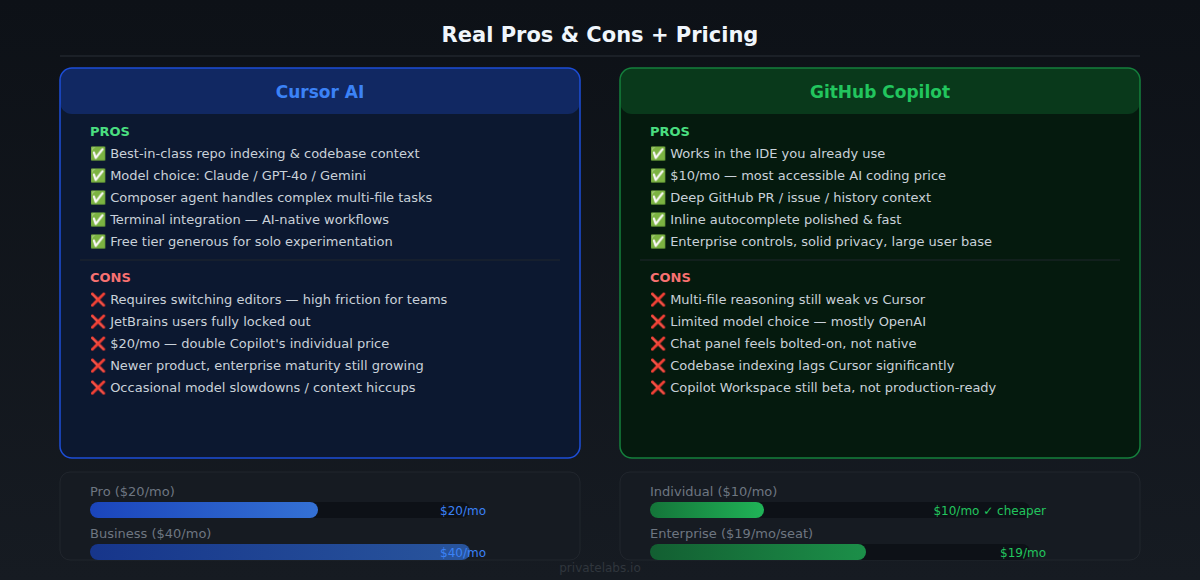
✅ Best-in-class codebase context and multi-file editing
✅ Model choice is a real differentiator
✅ Terminal integration and AI-native workflows feel genuinely different
✅ Composer/Agent mode handles complex tasks most tools can’t
✅ Free tier is reasonably generous for solo experimentation
❌ Requires abandoning your current editor (huge friction for many teams)
❌ JetBrains users are locked out entirely
❌ $20/month is double Copilot’s individual price
❌ Occasional model slowdowns and context window hiccups
❌ Newer product — enterprise trust and support are still maturing
GitHub Copilot
✅ Works in the IDE you already use
✅ $10/month is accessible pricing
✅ Deep GitHub ecosystem integration
✅ Inline autocomplete is polished and fast
✅ Well-established enterprise offering with solid privacy controls
✅ Massive user base means better-documented workarounds and tips
❌ Multi-file reasoning is still weak
❌ Limited model choice (mostly locked to OpenAI)
❌ Chat interface feels bolted-on rather than native
❌ Codebase indexing lags behind Cursor significantly
❌ Copilot Workspace promising but not production-ready yet
Alternatives Worth Considering
Before you commit to either, it’s worth knowing what else exists in this space:
-
Codeium / Windsurf — Codeium’s new Windsurf editor is a direct Cursor competitor and worth watching. Their free tier is more generous and the agentic “Cascade” feature is genuinely competitive. If Cursor’s price is a sticking point, try this first.
-
Amazon CodeWhisperer — If you’re deep in AWS, it’s free for individual developers and handles AWS SDK patterns well. Beyond that use case, it’s not competitive.
-
Tabnine — Privacy-first teams and enterprises that need on-premise model hosting should look here. The code completion quality has improved, though it’s still behind on reasoning tasks.
-
JetBrains AI Assistant — If you live in IntelliJ, WebStorm, or PyCharm, this is worth evaluating before switching editors just to use Cursor. It’s not as powerful, but the IDE integration is tight.
-
Aider — If you’re comfortable with terminal-based workflows, Aider is an open-source agent that pairs with your own API keys. It’s surprisingly capable and costs only what you spend on API calls.
My Final Recommendation
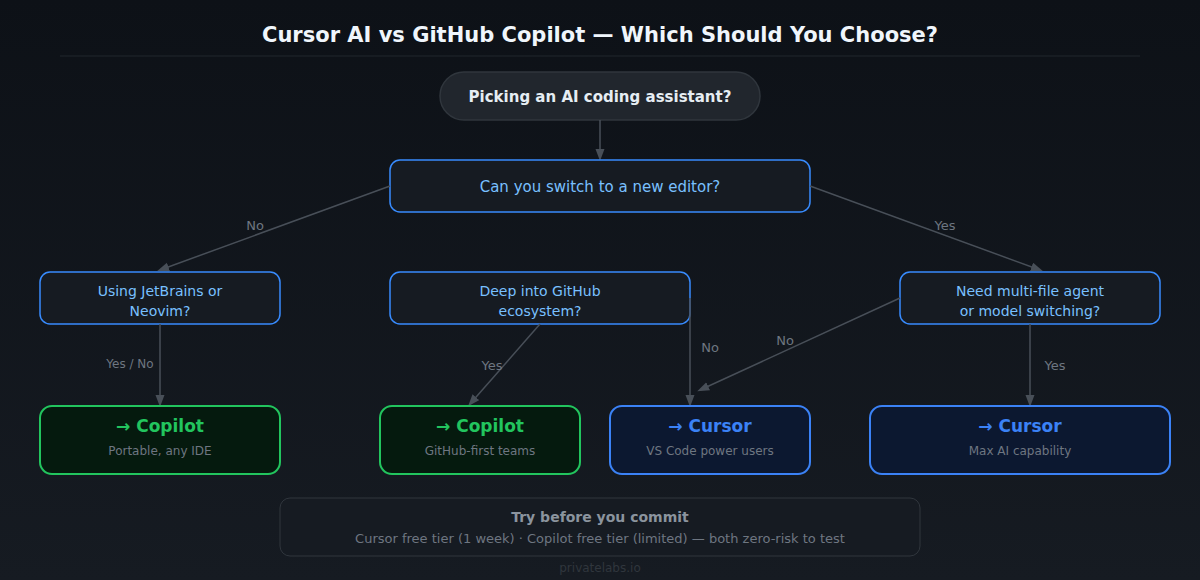
Choose Cursor AI if: You’re a solo developer or small team working primarily in VS Code, you want the most capable AI editing experience available right now, and you’re willing to commit to a new editor. The productivity gains on complex, multi-file tasks are real. On a recent greenfield TypeScript service, I shipped the initial API layer roughly 40% faster in Cursor than I would have with Copilot alone — the multi-file edits and model switching made that difference.
Choose GitHub Copilot if: You work in a team with existing IDE preferences (especially JetBrains), you want the path of least resistance, your work is deeply tied to GitHub’s pull request and issue workflows, or your organization needs enterprise-grade controls and you don’t want to introduce a new editor into the mix.
Neither tool is magic. Both will confidently write subtly wrong code. Both require you to read what they generate. The difference is in the ceiling — what the tool can handle when the problem is genuinely complex — and right now, Cursor’s ceiling is higher.
If you can only try one: start with Cursor’s free tier for a week on a real project. If you’re frustrated by the editor switch, Copilot is the right call. If you don’t look back, you have your answer.
Related Guides on Private Labs
- npm vs. mise: Which Task Runner Should Power Your Workflow?
- Team Automation with Claude Code: A Practical Guide
- The System Prompt That Turns Claude into a Senior Code Reviewer
More in Tools & Reviews.