Running Background Daemons in WSL2 — Three Ways, One Real Comparison
Running Background Daemons in WSL2 — Three Ways, One Real Comparison
I run several long-lived background processes in WSL2: a Redis queue daemon, a file watcher, a Telegram bridge, and a few task-processing agents. Getting them to start reliably, stay running, and survive across WSL restarts took longer than it should have because the advice online is scattered across systemd tutorials that assume a standard Linux install and tmux guides that skip the edge cases.
I have now run all three main approaches — systemd, tmux, nohup — in production for long enough to have opinions. Here is what each actually looks like and when each one is the right choice.
The Three Approaches at a Glance
| Method | Survives WSL restart? | Auto-restarts on crash? | Easy to inspect output? | Startup friction |
|---|---|---|---|---|
| systemd | Yes (with WSL2 boot) |
Yes (with Restart=) |
Yes (journalctl) |
High |
| tmux | No (manual reattach) | No (manual) | Yes (pane scroll) | Low |
| nohup | No | No | Partial (log file) | Very low |
That table is the summary. The rest is the nuance.
Method 1: nohup
nohup is the path of least resistance. You redirect stdout and stderr to a file, send the process to background, and move on.
nohup bash /mnt/c/LLMWiKi/inbox-watch.sh \
  >> /tmp/inbox-watch.log 2>&1 &

echo "Started with PID $!"
It works immediately, requires no setup, and the log file is readable with tail -f. The process keeps running when you close the terminal that launched it — that is what nohup does. It survives as long as the WSL instance is running.
What it does not do: survive a WSL restart (the process table is wiped), automatically restart if the process crashes, or give you any structured way to inspect process state. To check if it is still running you grep ps aux for the process name and hope the name is unique enough.
# Check if watcher is still running
ps aux | grep inbox-watch | grep -v grep
If it is not there, you restart it manually. There is no health check, no alerting, no restart policy.
Use nohup when: you need something running for the current WSL session and you will notice manually if it dies. One-off background tasks, temporary monitoring scripts, anything you are going to tear down in an hour. Do not use nohup for anything you need to trust across days.
Method 2: tmux
tmux is where I land for most daemon work. The idea is to put each long-running process in its own named tmux window or pane, leave tmux running in the background, and reattach when you need to inspect or restart something.
# Create a dedicated session for background daemons
tmux new-session -d -s daemons -n inbox-watch

# Start the watcher in that window
tmux send-keys -t daemons:inbox-watch \
  'bash /mnt/c/LLMWiKi/inbox-watch.sh 2>&1 | tee /tmp/inbox-watch.log' Enter

# Verify it started
tmux capture-pane -pt daemons:inbox-watch -S -20
The process is visible in a real terminal. You can reattach at any time with tmux attach -t daemons, scroll back through the output, and interact if needed. Multiple daemons get their own windows so they do not interfere. If the process crashes you see it — the window shows the exit, the prompt returns.
What tmux does not give you: automatic restarts, and survival across WSL reboots. When WSL shuts down or is restarted, the tmux session is gone. You have to run a setup script to recreate it.
I handle the restart problem with a setup script that I run once after each WSL restart:
#!/usr/bin/env bash
# setup-daemons.sh — run once after WSL restart

SESSION="daemons"

# Kill any leftover session from a previous run
tmux kill-session -t "$SESSION" 2>/dev/null

tmux new-session -d -s "$SESSION"

# Window 0: inbox watcher
tmux rename-window -t "$SESSION:0" inbox-watch
tmux send-keys -t "$SESSION:inbox-watch" \
  'bash /mnt/c/LLMWiKi/inbox-watch.sh' Enter

# Window 1: Redis queue daemon
tmux new-window -t "$SESSION" -n queue-daemon
tmux send-keys -t "$SESSION:queue-daemon" \
  'bash ~/unified-daemon.sh' Enter

# Window 2: Telegram bridge
tmux new-window -t "$SESSION" -n bridge
tmux send-keys -t "$SESSION:bridge" \
  'node ~/.openclaw/plugins/claude-bridge/index.js' Enter

echo "Daemon session started: tmux attach -t $SESSION"
Running bash setup-daemons.sh after WSL restarts brings everything back up in roughly two seconds. The cost is that you have to remember to run it — or add it to your .bashrc or Windows Task Scheduler.
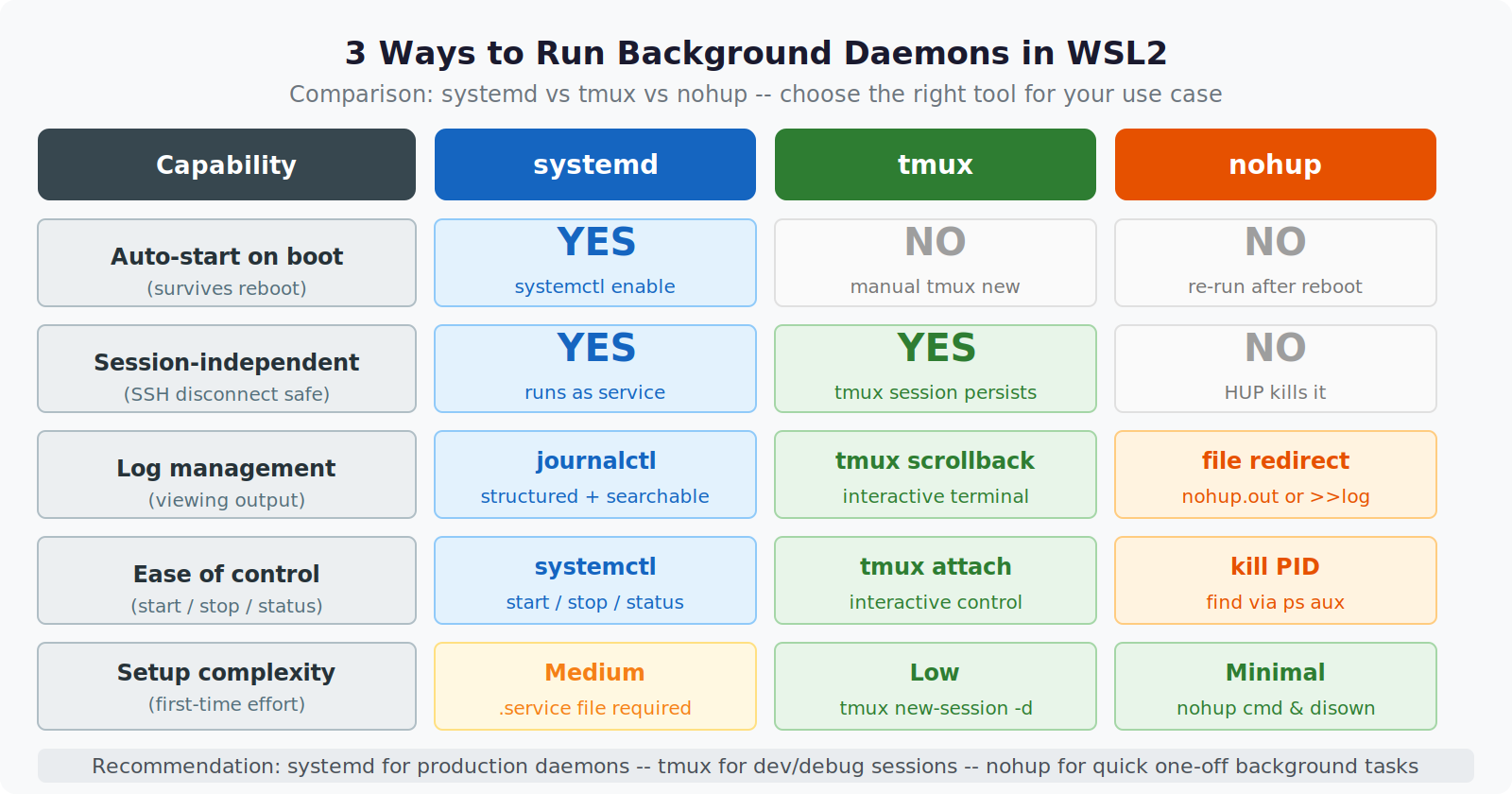
Use tmux when: you want persistent, inspectable background processes with low setup cost, and you can tolerate running a setup script after WSL restarts. This is the right default for most developer tooling.
Method 3: systemd
systemd gives you proper service management: automatic startup, crash recovery, structured logging, and dependency ordering. It also requires the most setup and has a specific WSL2 prerequisite.
Enabling systemd in WSL2
By default, WSL2 does not use systemd as PID 1. To enable it, add this to /etc/wsl.conf:
[boot]
systemd=true
Then restart the WSL instance from PowerShell:
wsl --shutdown
When WSL starts again, ps aux | head -5 should show systemd as PID 1. If it shows init, the setting did not take — verify /etc/wsl.conf was saved correctly and try again.
Writing a Service Unit
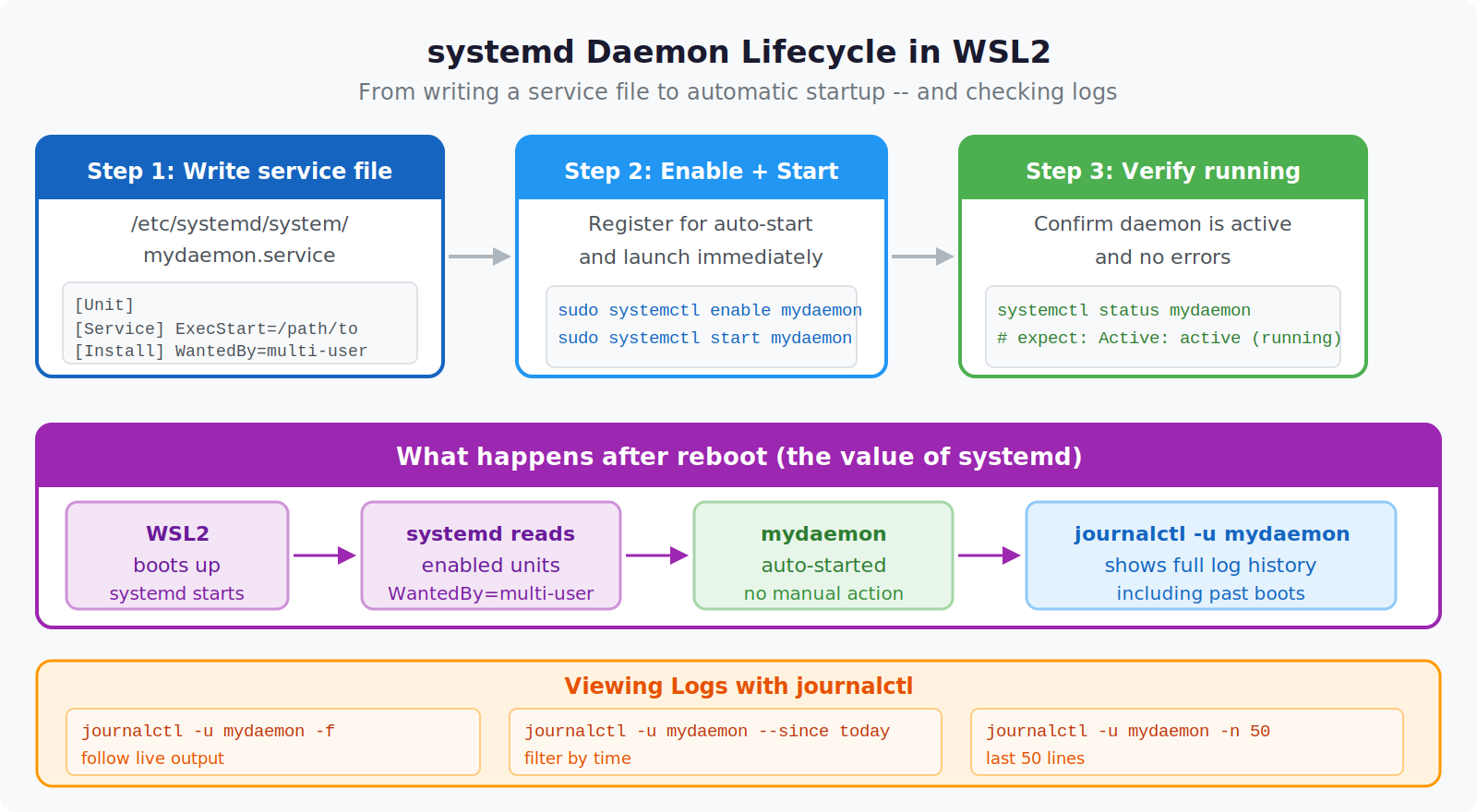
With systemd running, you define a service unit file:
# /etc/systemd/system/inbox-watch.service
[Unit]
Description=LLMWiKi Inbox Watcher
After=network.target

[Service]
Type=simple
User=user
ExecStart=/usr/bin/bash /mnt/c/LLMWiKi/inbox-watch.sh
Restart=on-failure
RestartSec=5
StandardOutput=journal
StandardError=journal

[Install]
WantedBy=multi-user.target
Enable and start it:
sudo systemctl enable inbox-watch
sudo systemctl start inbox-watch
sudo systemctl status inbox-watch
From this point on, the service starts automatically when WSL boots, and if inbox-watch.sh exits with a non-zero code, systemd waits five seconds and restarts it.
Logs go to the journal:
journalctl -u inbox-watch -f          # tail the logs
journalctl -u inbox-watch --since "1 hour ago"
The journal is structured — you can query by time, severity, or unit name. This is genuinely better than grepping a flat log file.
The Catch With WSL2 and Systemd
The systemd=true boot option has been stable since WSL2 version 0.67.6 (September 2022), but there are two things that will waste your time if you hit them.
First, some WSL distributions behave oddly if you have a [user] block in /etc/wsl.conf that conflicts with the systemd boot. If your WSL2 instance is slow to start after enabling systemd, check whether you have both systemd=true and default=<username> in the same file — the interaction can cause delays.
Second, Windows Fast Startup can interfere with wsl --shutdown. If wsl --shutdown followed by restarting WSL2 does not actually run a fresh boot, disable Fast Startup in Windows power settings and try again.
Use systemd when: you need guaranteed startup on WSL boot, automatic crash recovery without manual intervention, and the logging overhead of the journal is worth it. Long-lived infrastructure processes that have to be running for your work to function — not optional tooling — belong in systemd services.
Choosing Between Them
The right answer depends on the process’s criticality and how much setup friction you can tolerate.
For temporary or session-scoped processes: nohup. One line to start, one grep to check. Acceptable to lose on WSL restart.
For persistent developer tooling that you manage manually: tmux with a setup script. Output is always inspectable, setup is low, and a two-second relaunch after WSL restarts is an acceptable cost. This covers the large majority of my background work.
For infrastructure that must run: systemd. The cost is a few minutes of setup and the requirement that your WSL2 instance has systemd=true. The benefit is that you stop thinking about it — systemd will start it, restart it on failure, and log everything without your involvement.
I run Redis itself as a systemd service because the queue daemons that depend on it have to find Redis already running when they start. The queue daemons themselves run in tmux because I want to be able to inspect their output interactively. The Telegram bridge runs in tmux for the same reason. The inbox watcher could go either way — I run it in tmux currently but would move it to systemd if it started crashing often enough that manual restarts became annoying.
One Pattern That Helps All Three
Regardless of which method you use, write a unified status check script:
#!/usr/bin/env bash
# daemon-status.sh — check all background processes at once

echo "=== systemd services ==="
for svc in redis inbox-watch; do
  status=$(systemctl is-active "$svc" 2>/dev/null)
  printf "  %-20s %s\n" "$svc" "${status:-not-found}"
done

echo ""
echo "=== tmux windows ==="
tmux list-windows -t daemons 2>/dev/null \
  | awk '{print "  " $0}' \
  || echo "  (no daemons session)"

echo ""
echo "=== nohup processes ==="
ps aux | grep -E "inbox-watch|queue-daemon|unified-daemon|bridge" \
  | grep -v grep \
  | awk '{printf "  PID %-8s %s\n", $2, $11}'
Running bash daemon-status.sh gives a one-shot view of what is running across all three methods. This matters because in practice you might have some services in systemd and some in tmux, and you need a single place to check rather than remembering which method manages which process.
The Redis queue daemon mentioned in this article is described in detail in debugging silent message drops in a Redis queue. The inbox watcher daemon is covered in building an auto-committing knowledge vault.