How to Automate Your Daily Workflow with Python Scripts
How to Automate Your Daily Workflow with Python Scripts
I used to start every morning the same way: open my email, copy numbers from three different spreadsheets into a summary report, rename and sort a folder full of downloaded files, check a handful of websites for updates, and then paste everything into a Slack message for my team. It took about 45 minutes. Every single day. I was essentially a very expensive copy-paste machine.
Then I spent one afternoon writing Python scripts to handle all of it. Now my morning “routine” takes zero minutes because it runs automatically before I even open my laptop. In this post, I’ll walk you through exactly how I did it — with full, runnable code you can adapt for your own workflow.
The Problem: Death by a Thousand Manual Tasks
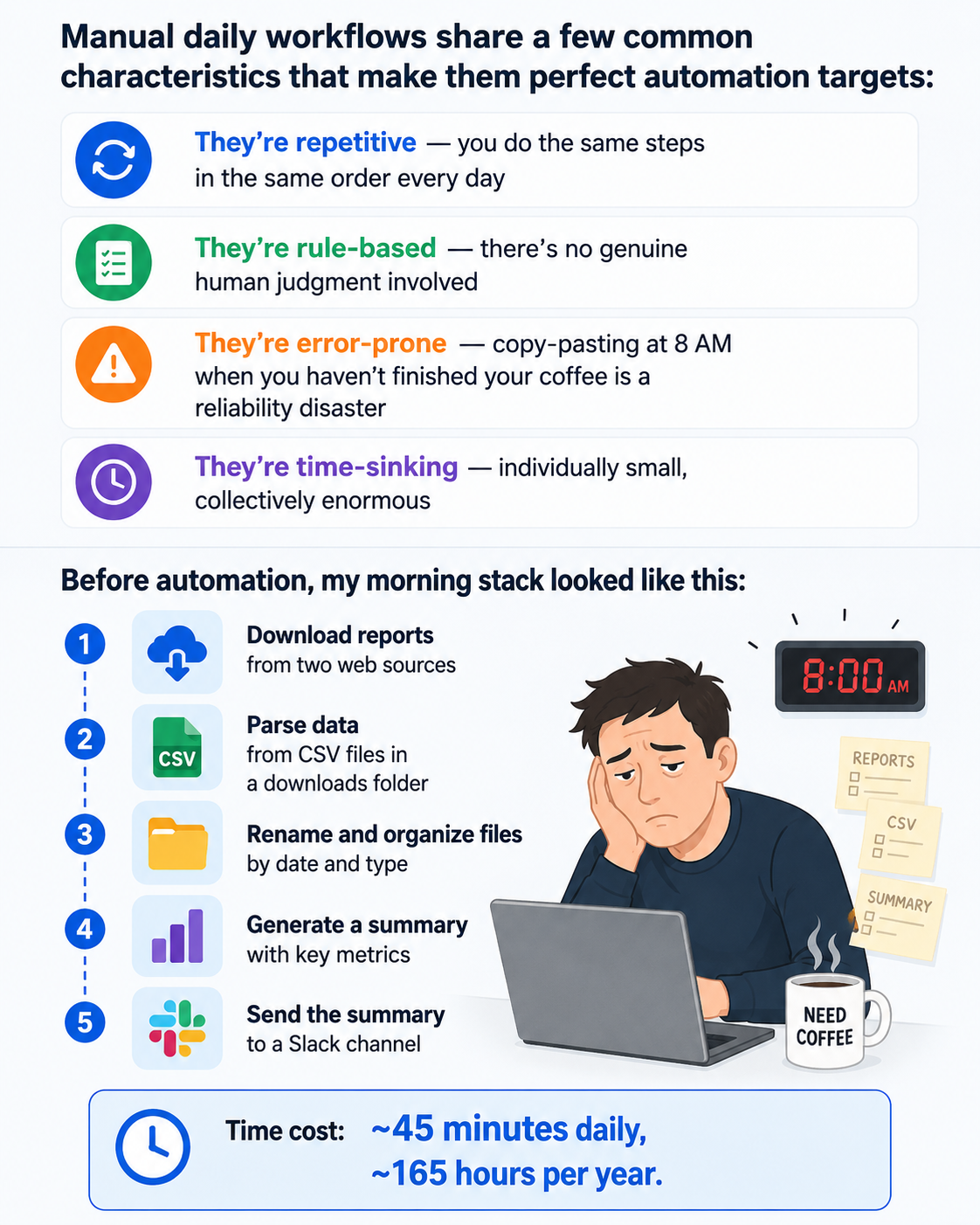
Manual daily workflows share a few common characteristics that make them perfect automation targets:
- They’re repetitive — you do the same steps in the same order every day
- They’re rule-based — there’s no genuine human judgment involved
- They’re error-prone — copy-pasting at 8 AM when you haven’t finished your coffee is a reliability disaster
- They’re time-sinking — individually small, collectively enormous
Before automation, my morning stack looked like this:
- Download reports from two web sources
- Parse data from CSV files in a downloads folder
- Rename and organize files by date and type
- Generate a summary with key metrics
- Send the summary to a Slack channel
Time cost: ~45 minutes daily, ~165 hours per year.
Let’s automate all five of those steps.
The Automation Approach
I used Python because it has excellent libraries for every piece of this puzzle, it reads almost like plain English, and it runs on every operating system. The full solution uses:
requestsandBeautifulSoupfor web fetchingpandasfor CSV processingos,shutil, andpathlibfor file managementsmtplib/slack_sdkfor notificationsschedulefor running everything on a timer- A simple
.envfile for storing credentials safely
The architecture is a single orchestration script that calls modular functions. Each function handles one job, which means you can swap pieces in and out without breaking everything else.
Implementation
Step 0: Set Up Your Environment
First, create a project folder and install the dependencies.
mkdir daily_automation
cd daily_automation
python -m venv venv
source venv/bin/activate        # On Windows: venv\Scripts\activate
pip install requests beautifulsoup4 pandas slack_sdk schedule python-dotenv
Create a .env file to store your secrets. Never hardcode credentials in your scripts.
# .env
SLACK_BOT_TOKEN=xoxb-your-token-here
SLACK_CHANNEL_ID=C0123456789
DOWNLOAD_DIR=/Users/yourname/Downloads
REPORT_DIR=/Users/yourname/Reports
EMAIL_ADDRESS=you@example.com
EMAIL_PASSWORD=your_app_password
Step 1: File Organization — Taming the Downloads Folder
Before (manual): Open Downloads, look at 40 files, drag CSVs to one folder, PDFs to another, rename each one with today’s date. About 10 minutes.
After (automated):
# file_organizer.py
import os
import shutil
from pathlib import Path
from datetime import datetime
from dotenv import load_dotenv

load_dotenv()

DOWNLOAD_DIR = Path(os.getenv("DOWNLOAD_DIR"))
REPORT_DIR = Path(os.getenv("REPORT_DIR"))

# Map file extensions to destination subfolder names
EXTENSION_MAP = {
    ".csv": "data/csv",
    ".xlsx": "data/excel",
    ".pdf": "documents/pdf",
    ".png": "images",
    ".jpg": "images",
    ".zip": "archives",
}

def organize_downloads():
    """
    Scans the Downloads folder, moves files to categorized subfolders,
    and renames them with a date prefix for easy sorting.
    """
    today = datetime.now().strftime("%Y-%m-%d")
    moved_count = 0

    for file_path in DOWNLOAD_DIR.iterdir():
        # Skip directories and hidden files (like .DS_Store)
        if file_path.is_dir() or file_path.name.startswith("."):
            continue

        extension = file_path.suffix.lower()
        subfolder = EXTENSION_MAP.get(extension, "misc")

        # Build destination path, creating folders if they don't exist
        destination_folder = REPORT_DIR / subfolder
        destination_folder.mkdir(parents=True, exist_ok=True)

        # Prefix filename with today's date to make sorting trivial
        new_filename = f"{today}_{file_path.name}"
        destination = destination_folder / new_filename

        # Handle name collisions by appending a counter
        counter = 1
        while destination.exists():
            stem = file_path.stem
            suffix = file_path.suffix
            destination = destination_folder / f"{today}_{stem}_{counter}{suffix}"
            counter += 1

        shutil.move(str(file_path), str(destination))
        moved_count += 1
        print(f"  Moved: {file_path.name} → {subfolder}/{new_filename}")

    print(f"[File Organizer] Done. {moved_count} files organized.")
    return moved_count

if __name__ == "__main__":
    organize_downloads()
Why this works: pathlib.Path makes file path handling clean and cross-platform. shutil.move() works across different drives, unlike os.rename() which fails when source and destination are on different filesystems. The collision-handling loop means you’ll never silently overwrite a file.
Step 2: Data Fetching and CSV Processing
Before (manual): Visit a URL, click download, wait, open the CSV, copy specific columns, paste into a master sheet. Repeat for multiple sources. About 15 minutes.
After (automated):
“`python
data_fetcher.py
import requests import pandas as pd from pathlib import Path from datetime import datetime import os from dotenv import load_dotenv
load_dotenv()
REPORT_DIR = Path(os.getenv(“REPORT_DIR”))
— Web Data Fetching —
def fetch_csv_from_url(url: str, filename: str) -> Path: “”” Downloads a CSV from a URL and saves it locally. Returns the path to the saved file.
We stream the download so large files don't blow out memory.
"""
today = datetime.now().strftime("%Y-%m-%d")
save_path = REPORT_DIR / "data" / "csv" / f"{today}_{filename}"
save_path.parent.mkdir(parents=True, exist_ok=True)

headers = {
    "User-Agent": "Mozilla/5.0 (compatible; DailyBot/1.0)"
}

response = requests.get(url, headers=headers, stream=True, timeout=30)
response.raise_for_status()  # Raises an exception for 4xx/5xx responses

with open(save_path, "wb") as f:
    for chunk in response.iter_content(chunk_size=8192):
        f.write(chunk)

print(f"[Data Fetcher] Downloaded: {save_path.name}")
return save_path
— CSV Processing —
def process_sales_csv(file_path: Path) -> dict: “”” Reads a sales CSV and extracts the key metrics we report each morning. Returns a dictionary of summary statistics.
Using pandas here because it handles messy CSVs (mixed types, empty rows)
much more gracefully than the built-in csv module.
"""
df = pd.read_csv(file_path, skipinitialspace=True)

# Normalize column names: lowercase, replace spaces with underscores
df.columns = df.columns.str.lower().str.replace(" ", "_")

# Drop completely empty rows that often appear in exported spreadsheets
df.dropna(how="all", inplace=True)

# Convert the amount column to numeric, coercing errors (like "$1,200") to NaN
df["amount"] = pd.to_numeric(
Related Guides on Private Labs
- How I Built an AI Automation Workflow That Saves 3 Hours a Day
- Auto-Deploy WordPress Posts with GitHub Actions
- How to Fix ‘Port Already in Use’ Errors in Node.js
More in Automation.