Fixing EACCES Permission Errors on WSL2 (When /mnt/c Fights Back)
Fixing EACCES Permission Errors on WSL2 (When /mnt/c Fights Back)
Last month I spent three hours debugging what I thought was a Node.js issue. npm install kept spitting out EACCES: permission denied, mkdir '/mnt/c/projects/myapp/node_modules'. I ran it as root. Same error. I ran chmod -R 777. Still failing. I was convinced something was deeply broken with my setup.
It wasn’t Node. It wasn’t npm. It was NTFS ACLs — Windows file permissions bleeding into WSL2 and quietly overriding everything I tried to do from the Linux side. Here’s the full breakdown of what happened and how I actually fixed it.
Why /mnt/c Is Different From the Rest of WSL2
When you work inside WSL2’s native filesystem — /home/yourname, /tmp, anything not under /mnt/ — you’re on a real ext4 volume. Standard Linux permissions apply cleanly.
The moment you cross into /mnt/c/ (or any other mounted Windows drive), you’re on NTFS. WSL2 uses a translation layer called DrvFs to expose the Windows filesystem to Linux, but DrvFs doesn’t give you full Linux permission semantics. What you see with ls -la is a projection of the Windows ACL, not actual Unix permission bits.
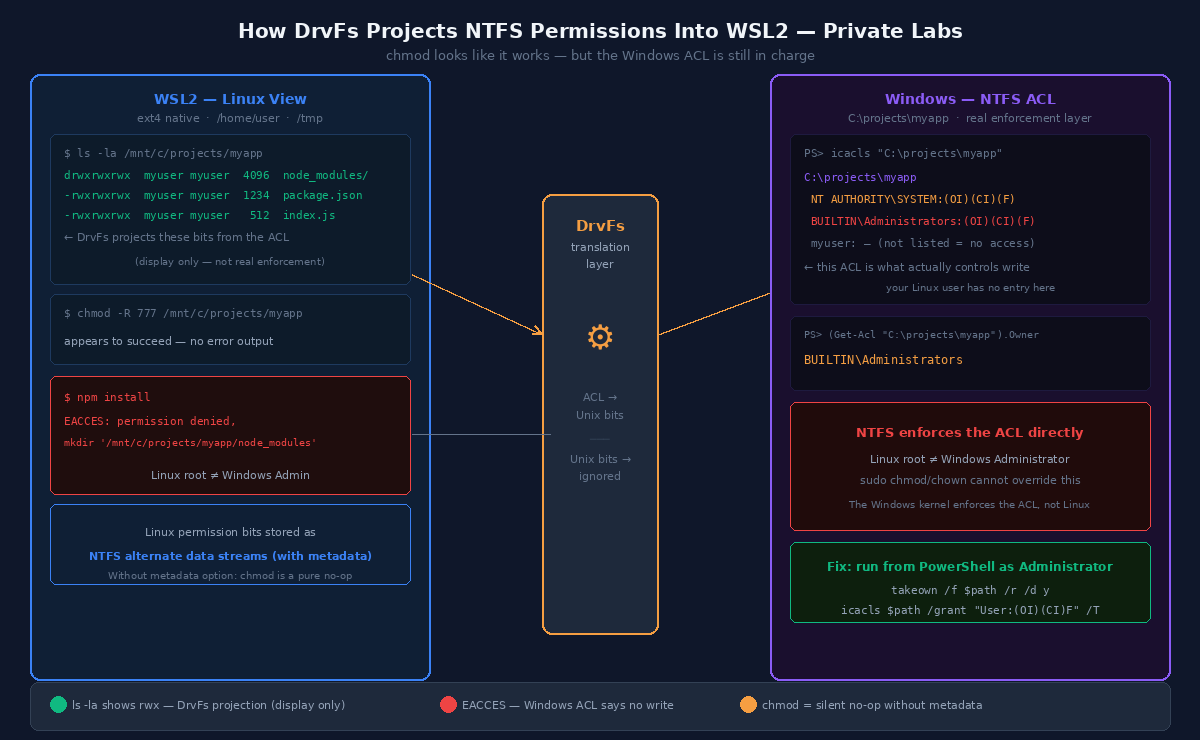
This is why chmod 777 somefile on /mnt/c/ appears to work — ls -la shows rwxrwxrwx — but the effective permissions are still controlled by the Windows ACL underneath. If the Windows ACL says “this user can’t write here,” Linux can’t override it by setting permission bits. DrvFs is lying to you, politely.
The Three Most Common Causes
Over time I’ve hit this error in three distinct scenarios, each with a different root cause:
1. Your Windows user doesn’t own the folder
This happens a lot when you clone a repo as Administrator in Windows, then try to work on it from WSL2 as your normal user. The folder is owned by Administrator in the Windows ACL, and your WSL2 Linux user maps to your regular Windows account — different principal, access denied.
2. The folder was created by a different Windows user or app
Some tools — installers, CI runners, Docker Desktop — create directories under C:\ using a service account or elevated context. WSL2 inherits those restrictive ACLs.
3. WSL2 metadata mounting is off
By default on older WSL2 setups, DrvFs mounts without metadata support. Without metadata, WSL2 can’t even store Linux permission bits on NTFS files, so everything defaults to a fixed permission mask and chmod does nothing at all.
Diagnosing the Actual Problem
Before reaching for a fix, I confirm which scenario I’m in.
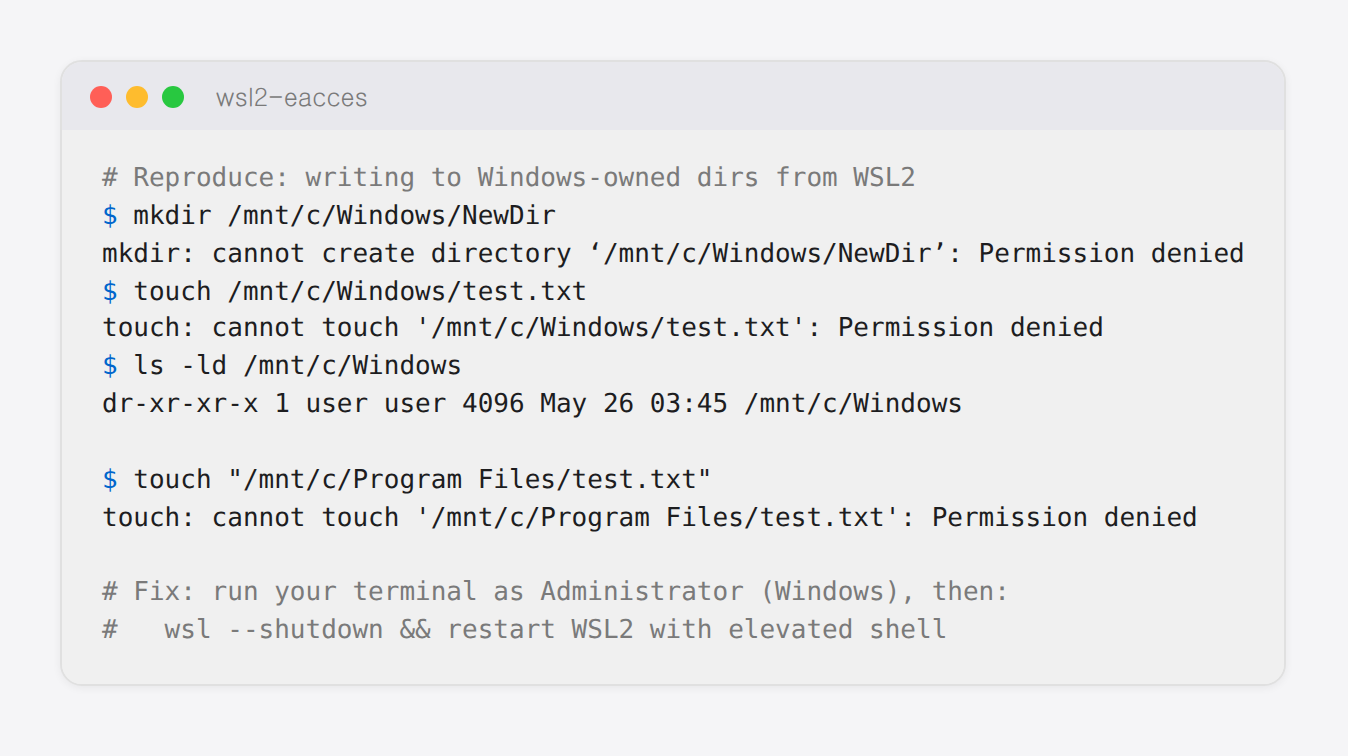
Step 1: Check effective permissions from the Windows side.
Open PowerShell (not WSL2) and run:
icacls "C:\projects\myapp"
Look at who has what rights. If you see NT AUTHORITY\SYSTEM and your user is missing, or you see (DENY) entries, that’s your culprit.
Step 2: Check your WSL2 mount options.
mount | grep 'C:'
Look for metadata in the options list. If it’s absent, Linux permission bits aren’t being persisted.
Step 3: Check which Windows user owns the problem directory.
(Get-Acl "C:\projects\myapp").Owner
If the owner isn’t your normal Windows account, that’s cause #1 or #2 above.
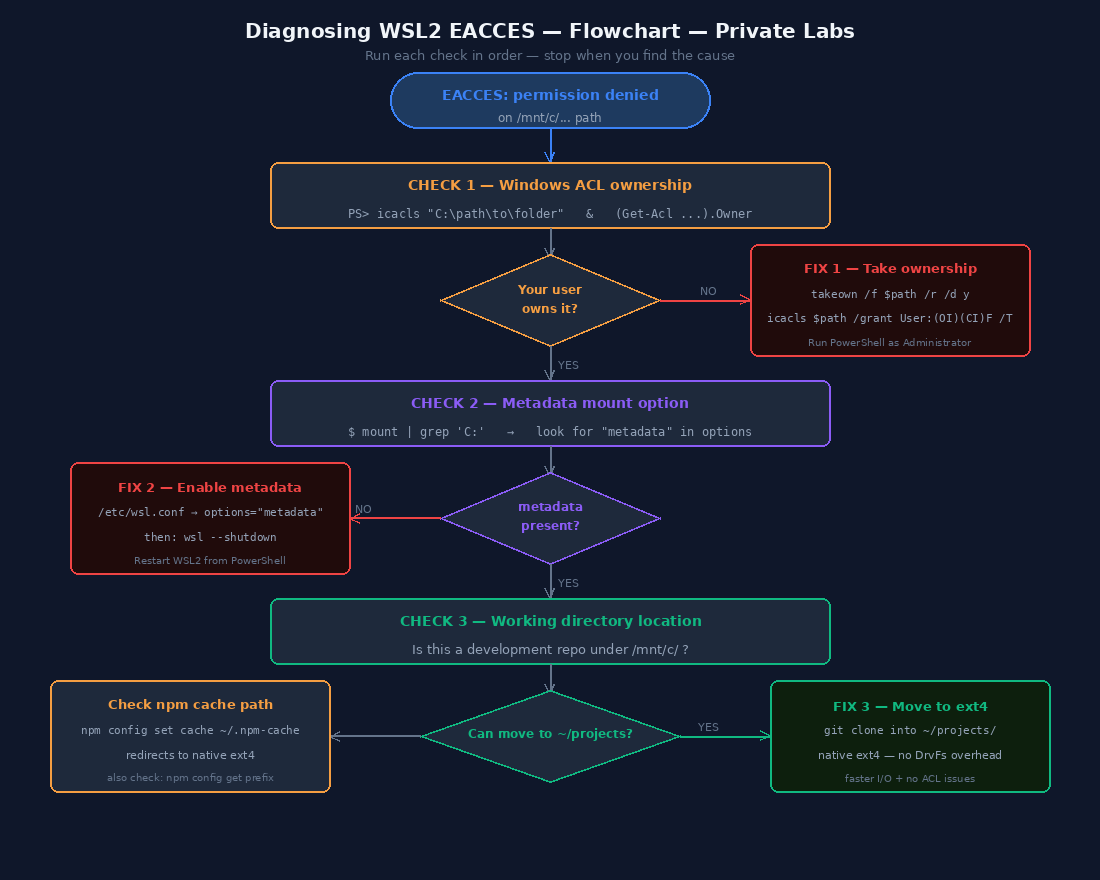
Fix 1: Take Ownership and Reset ACLs in PowerShell
This is the fix for causes #1 and #2 — when the Windows ACL is wrong, fix it from Windows.
Open PowerShell as Administrator and run:
# Replace with your actual Windows username
$user = "$env:USERDOMAIN\$env:USERNAME"
$path = "C:\projects\myapp"

# Take ownership
takeown /f $path /r /d y

# Grant full control to your user
icacls $path /grant "${user}:(OI)(CI)F" /T

# Optional: remove inherited deny entries if present
icacls $path /reset /T
After this, go back to WSL2 and retry. In most cases, this alone solves the EACCES error.
Why not just use sudo from WSL2?
Because sudo in WSL2 gives you root on the Linux side, not on the Windows side. The Windows ACL doesn’t care about Linux’s root. The NTFS layer checks the Windows security principal, and Linux root isn’t a Windows principal at all.
Fix 2: Enable Metadata Mounting in /etc/wsl.conf
If mount | grep 'C:' showed no metadata option, you need to enable it so that Linux permission bits actually stick.
Inside WSL2, create or edit /etc/wsl.conf:
[automount]
enabled = true
options = "metadata,umask=22,fmask=11"
root = /mnt/
Then restart WSL2 from PowerShell:
wsl --shutdown
Wait a few seconds, then reopen your WSL2 terminal. The mount options will include metadata now.
mount | grep 'C:'
# drvfs on /mnt/c type 9p (...,metadata,umask=22,fmask=11,...)
With metadata enabled, chmod on /mnt/c/ files actually persists the Unix permission bits as NTFS alternate data streams. This means you can now control permissions from the Linux side without touching the Windows ACL.
The gotcha: metadata mounting doesn’t retroactively fix existing files. You still need Fix 1 for directories that are already broken at the Windows ACL level. Metadata handles new writes going forward.
Fix 3: Move Your Working Directory Out of /mnt/c
This is the one I wish someone had told me years ago: don’t do active development directly in /mnt/c/ if you can avoid it.
Clone your repos into the WSL2 native filesystem instead:
# Instead of /mnt/c/projects/myapp
mkdir -p ~/projects
cd ~/projects
git clone https://github.com/yourname/myapp.git
cd myapp
npm install  # no EACCES
The performance difference is also significant — file I/O on the native WSL2 ext4 filesystem is several times faster than going through DrvFs. The permission errors and the slowness both disappear at once.
When do you need to work in /mnt/c/? When you’re sharing files with a Windows GUI app (VS Code opening files in Windows Explorer, a Windows-side tool reading your config). For everything else, native is better.
The Specific npm/Node.js Case
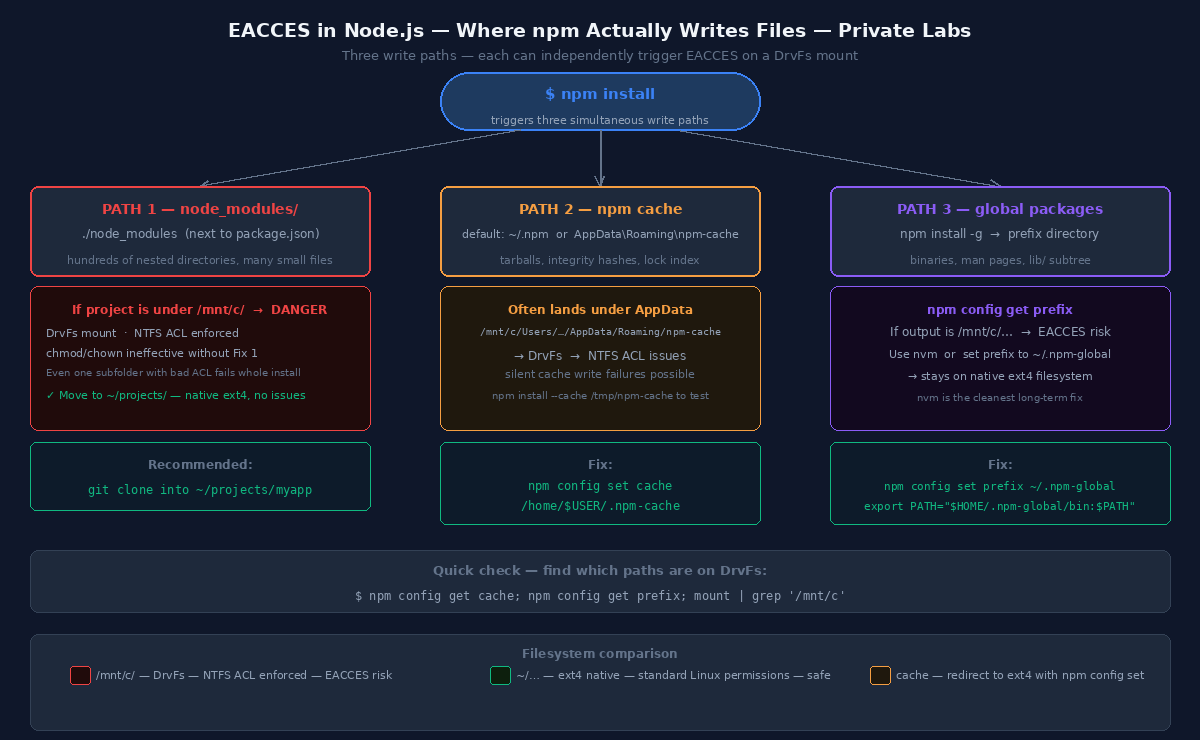
npm install is particularly sensitive to this because it creates many small nested directories inside node_modules/. Even if the top-level directory is writable, a single subfolder with a bad ACL can fail the whole install.
If you’ve applied Fix 1 and Fix 2 but npm is still failing, try this before anything else:
# Clear npm cache
npm cache clean --force

# Try with explicit prefix to a known-good path
npm install --cache /tmp/npm-cache
If that works, the issue is the cache directory’s permissions, not the project directory itself. Your npm cache might be sitting somewhere under /mnt/c/Users/yourname/AppData/ with restricted ACLs.
You can permanently redirect npm’s cache to the WSL2 filesystem:
npm config set cache /home/$USER/.npm-cache
What Didn’t Work (And Why)
To save you the detours I took:
sudo chmod -R 777 /mnt/c/projects/myapp — Appears to succeed, ls -la looks right, EACCES persists. DrvFs projects the ACL, it doesn’t respect chmod for write enforcement when the underlying Windows ACL disagrees.
sudo chown -R $USER /mnt/c/projects/myapp — Same story. Changes the displayed owner, Windows ACL is unaffected.
Reinstalling Node.js — I did this. Wasted an hour. Node was fine.
Disabling Windows Defender real-time protection — Also tried this. Unrelated. Don’t bother.
Setting umask 0000 in .bashrc — Makes new files world-writable but doesn’t fix existing ACLs. Dangerous and ineffective for this problem.
Checklist: EACCES on /mnt/c
Quick reference for next time:
- Run
icaclsfrom PowerShell — confirm your Windows user has(F)or(M)on the target path - Run
takeown+icacls /grantif ownership is wrong - Check
/etc/wsl.confformetadataoption — add if missing, thenwsl --shutdown - For Node.js specifically: redirect npm cache to
~/.npm-cacheon native ext4 - If it’s a development repo: move it to
~/projects/inside WSL2 native filesystem
The underlying rule is simple: NTFS ACLs win over Linux permission bits when you’re on a DrvFs mount. Fix the ACL from Windows, or get off the DrvFs mount.
Running a six-agent tmux setup that keeps hitting permission errors across different drives? That’s a different problem — covered in the multi-agent post in Build & Projects.